MQTT Configuration and Messaging Guide

Overview
MQTT (Message Queuing Telemetry Transport) is a lightweight publish/subscribe messaging protocol designed for constrained devices and low-bandwidth, high-latency networks. It is widely used in IoT applications for efficient device-to-cloud and device-to-device communication.
This guide covers how to configure an MQTT client on a Signetik device, publish messages from the device, and use MQTTX — a cross-platform MQTT client — to subscribe to device messages and publish commands back.
Prerequisites
- A Signetik device with MQTT client firmware flashed and running
- A serial terminal connected to the device (e.g., PuTTY, minicom, or VS Code Serial Monitor)
- MQTTX installed on your PC (available for Windows, macOS, and Linux)
- Network connectivity on both the device and your PC
Device Configuration
The device is configured via + commands sent over a serial interface. Commands follow the format +set,<parameter>:<value>.
Step 1: Disable the MQTT Client Before Configuring
Always disable the MQTT client before changing settings to prevent connection issues:
+set,enabled:0
Step 2: Configure Connection Parameters
Set each parameter in turn:
+set,devid:1234AAAB
+set,clean_session:0
+set,server_address:test.mosquitto.org
+set,server_port:1883
+set,pubtopic:mypub
+set,subtopic1:mysub
+set,proto:mqtt
+set,user:
+set,rawmode:1
+set,payload:json
Parameter Reference
| Parameter | Example Value | Description |
|---|---|---|
devid |
1234AAAB |
Unique device identifier, used as the MQTT client ID |
clean_session |
0 |
0 = persistent session (broker retains subscriptions); 1 = clean session |
server_address |
test.mosquitto.org |
Hostname or IP address of the MQTT broker |
server_port |
1883 |
Broker port. 1883 = unencrypted; 8883 = TLS/SSL |
pubtopic |
mypub |
Topic the device will publish messages to |
subtopic1 |
mysub |
Topic the device will subscribe to for incoming messages |
proto |
mqtt |
Protocol. Use mqtt for standard MQTT or mqtts for TLS |
Note: test.mosquitto.org is a public, unauthenticated broker maintained by the Mosquitto project. It is suitable for development and testing but should not be used for production workloads.Step 3: Enable the MQTT Client
Once all parameters are set, enable the client:
+set,enabled:1
The device will attempt to connect to the broker. Monitor the serial output and wait for a connection confirmation message, such as:
+notify,event:mqtt,connecting:1,host:test.mosquitto.org,devid:1234AAAB,user:NULL,pw:NULL
+notify,event:mqtt,connected:1
+notify,mqtt:sub,topic1:mysub
Tip: If the connection fails, double-check theserver_address,server_port, and network connectivity. For persistent sessions (clean_session:0), the broker will remember the device's subscriptions between connections.
Publishing a Message from the Device
Once connected, use the +push command to publish a JSON payload to the configured publish topic (mypub):
+push,queue1,{"message":"hello from Signetik"}
Command Structure
+push,<queue>,<payload>
| Field | Description |
|---|---|
queue |
Internal message queue identifier (e.g., queue1) |
payload |
The message body. |
The device will publish this payload to the topic defined by pubtopic — in this case, mypub.
Additional Payload Examples
+push,queue1,{"sensor":"temperature","value":23.4,"unit":"C"}
+push,queue1,{"device":"1234AAAB","status":"online","rssi":-72}
+push,queue1,{"alert":"threshold_exceeded","level":98.5}
Using MQTTX to Monitor and Communicate with the Device
MQTTX is a feature-rich, cross-platform MQTT client with a clean GUI. It supports MQTT 3.1, 3.1.1, and 5.0, making it a solid choice for development and testing.
Installing MQTTX
Download and install MQTTX from https://mqttx.app/ for your platform. It is also available as a CLI tool (npm install -g mqttx-cli) if you prefer a terminal workflow.
Connecting MQTTX to the Broker
- Launch MQTTX.
- Click + New Connection in the left sidebar.

- Fill in the connection details:
| Field | Value |
|---|---|
| Name | Signetik Test |
| Host | test.mosquitto.org |
| Port | 1883 |
| Client ID | Any unique string, e.g. mqttx-dev-01 |
| Username | (leave blank for test.mosquitto.org) |
| Password | (leave blank) |
| SSL/TLS | Off |
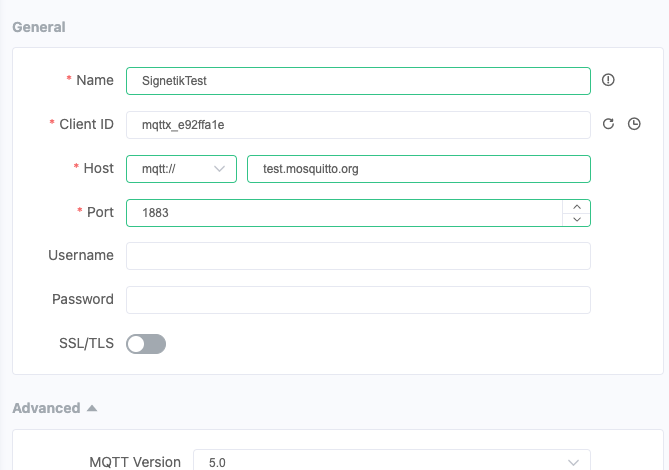
- Click Connect. The status indicator in the top-left of the connection panel should turn green.
Subscribing to Device Messages (Receiving from the Device)
The device publishes to mypub. Subscribe to this topic in MQTTX to receive those messages.
- In the connected session, click the + New Subscription button (or the subscribe icon).
- Enter the topic:
mypub - Set QoS to 0 (or 1 if you need guaranteed delivery).
- Click Confirm.
Now trigger a publish from the device:
+push,queue1,{"message":"hello from Signetik"}
You should see the message appear in the MQTTX message panel within seconds:
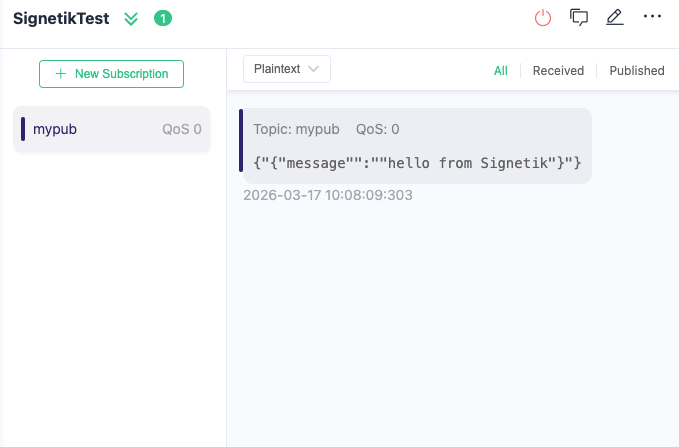
Wildcard subscriptions: You can also subscribe tomypub/#or+/mypubto catch messages across subtopics, depending on your topic hierarchy.
Publishing a Message to the Device (Sending from MQTTX)
The device subscribes to mysub. Use MQTTX to send commands or data to the device on this topic.
- In the active MQTTX session, locate the message compose area at the bottom of the chat panel.
- Set the Topic field to:
mysub - Set the QoS to
0(or1for confirmed delivery). - Set the Payload format to JSON or Plaintext as needed.
- Type your message in the payload field, for example:
{"command":"reboot"}
or
{"command":"set_interval","value":30}
- Click the Send button (paper plane icon, or press
Ctrl+Enter).
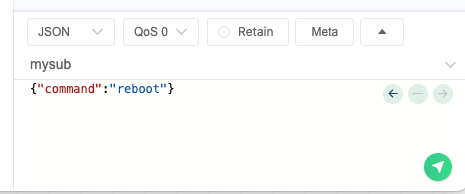
The device will receive the message on mysub and handle it according to its firmware logic.
Two-Way Communication Example
The following sequence illustrates a full round-trip exchange between the device and MQTTX:
[Device → mypub]  {"device":"1234AAAB","status":"online"}
[MQTTX → mysub]   {"command":"get_sensor_data"}
[Device → mypub]  {"sensor":"level","value":74.2,"unit":"%"}
[MQTTX → mysub]   {"command":"set_interval","value":60}
[Device → mypub]  {"ack":"set_interval","status":"ok"}
This pattern — device publishes status/data, host publishes commands — is the standard MQTT IoT control loop.
Using the MQTTX CLI (Optional)
If you prefer the command line, the MQTTX CLI offers equivalent functionality:
Subscribe to device messages:
mqttx sub -h test.mosquitto.org -p 1883 -t mypub -v
Publish a command to the device:
mqttx pub -h test.mosquitto.org -p 1883 -t mysub -m '{"command":"reboot"}'
Subscribe with QoS 1:
mqttx sub -h test.mosquitto.org -p 1883 -t mypub -q 1 -v
Topic Structure Recommendations
For production use, adopt a structured topic hierarchy to support filtering, routing, and access control:
signetik/<devid>/telemetry     # Device → Cloud (sensor data, status)
signetik/<devid>/command       # Cloud → Device (commands, configuration)
signetik/<devid>/ack           # Device → Cloud (command acknowledgments)
Example with the configured device ID:
signetik/1234AAAB/telemetry
signetik/1234AAAB/command
signetik/1234AAAB/ack
To subscribe to all devices in MQTTX, use a wildcard:
signetik/+/telemetry
Troubleshooting
| Symptom | Likely Cause | Resolution |
|---|---|---|
| Device does not connect | Wrong broker address or port | Verify server_address and server_port |
| No messages in MQTTX | Wrong topic subscription | Confirm MQTTX is subscribed to mypub, not mysub |
| Device does not receive commands | Wrong publish topic in MQTTX | Publish to mysub, not mypub |
| Intermittent disconnects | Network instability or keepalive timeout | Check signal quality; adjust keepalive settings |
| Duplicate messages | QoS mismatch or retry logic | Ensure consistent QoS levels on both sides |
| Persistent session not restoring | clean_session set to 1 on reconnect |
Ensure clean_session:0 is set before reconnecting |
Quick Reference
Device Commands
+set,enabled:0                          # Disable client (before config changes)
+set,devid:<id>                         # Set device/client ID
+set,clean_session:<0|1>                # Session persistence
+set,server_address:<host>              # Broker hostname or IP
+set,server_port:<port>                 # Broker port (1883 or 8883)
+set,pubtopic:<topic>                   # Publish topic
+set,subtopic1:<topic>                  # Subscribe topic
+set,proto:<mqtt|mqtts>                 # Protocol selection
+set,enabled:1                          # Enable client (connect)

+push,queue1,<payload>                  # Publish a message
MQTTX Cheat Sheet
| Action | Setting |
|---|---|
| Receive device messages | Subscribe to mypub |
| Send commands to device | Publish to mysub |
| Monitor all topics | Subscribe to # (use carefully on public brokers) |
| Filter by device ID | Subscribe to signetik/1234AAAB/# |